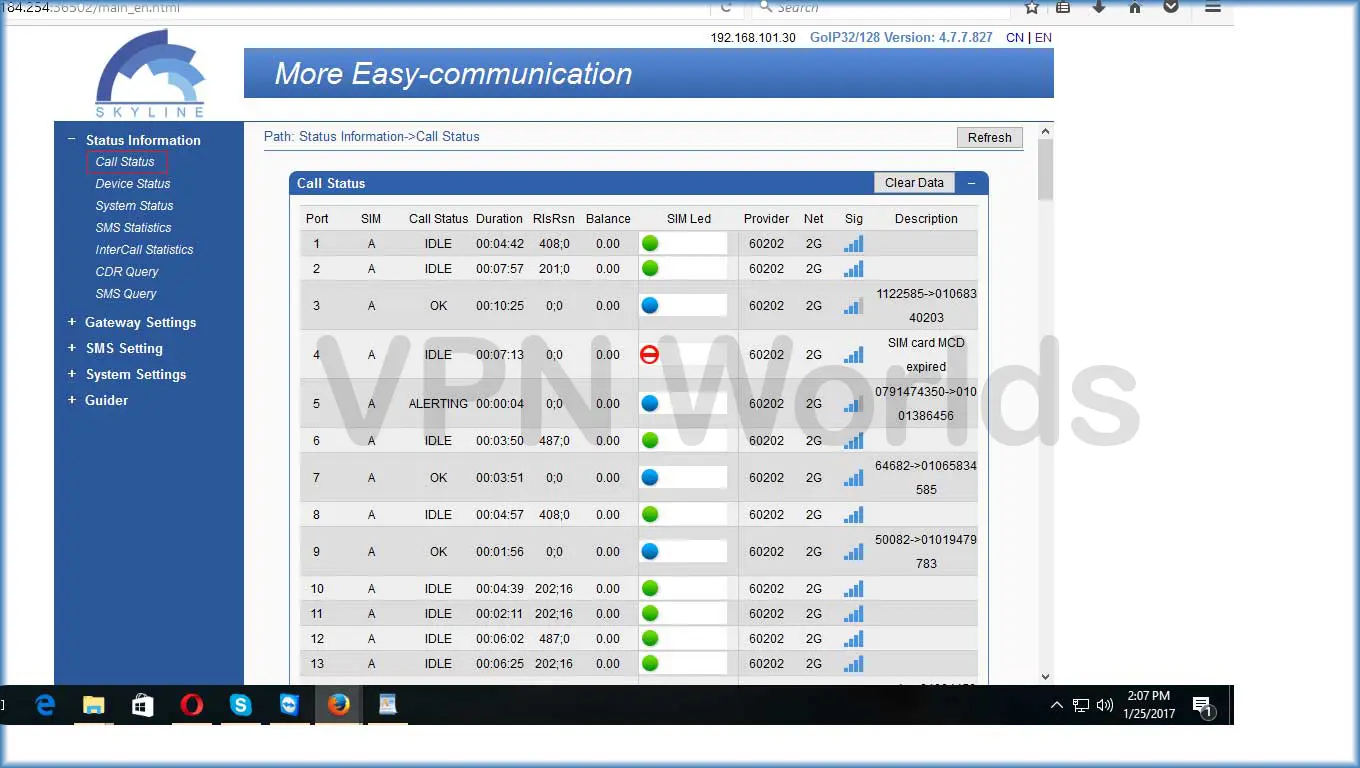
Upon accessing the first page of the Skyline Gateway interface, users can view critical system information, including call status, SIM status, signal strength, and SIM LED port activity. This page provides a comprehensive snapshot of the gateway’s operational status, allowing users to monitor and assess the device’s performance effectively.
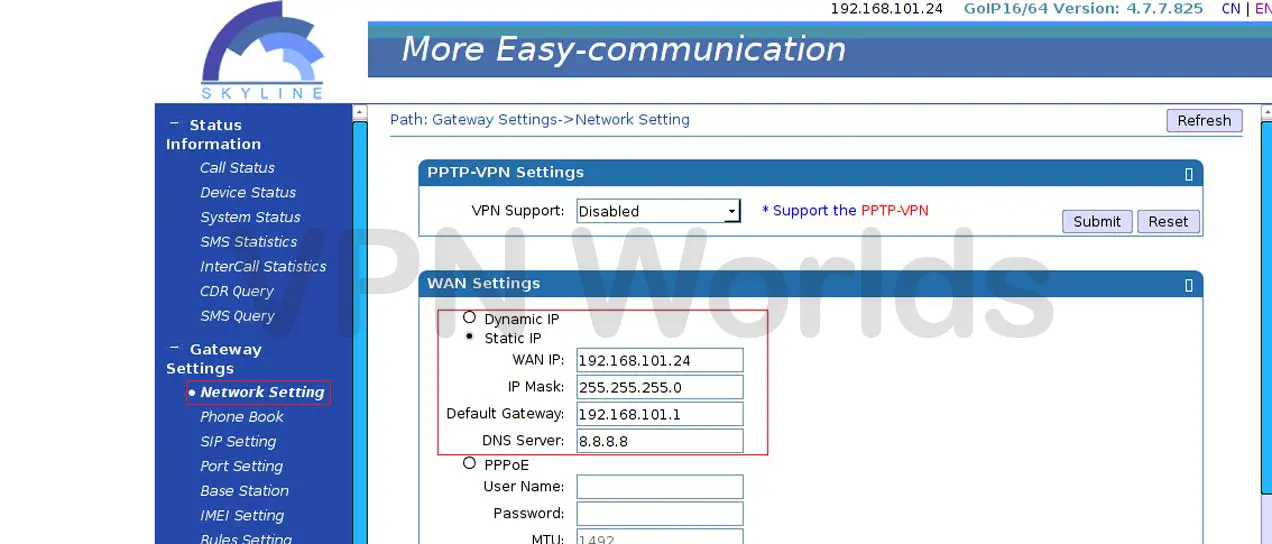
To configure the Skyline Gateway’s network settings, navigate to the Network Settings page. Here, it is essential to adjust the basic network configurations for optimal performance. Begin by identifying the default IP address of your bandwidth optimizer. Assign a static IP to the gateway that falls within the same IP range as the bandwidth optimizer. Proper network configuration ensures seamless communication between the gateway and connected devices.
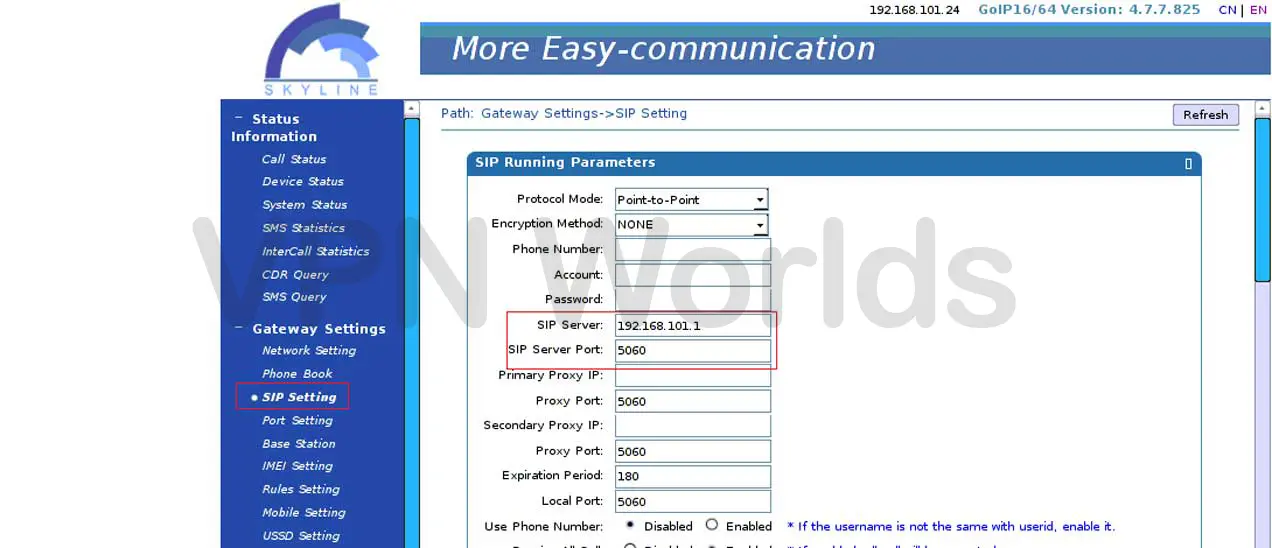
In the SIP Settings section, pair the Skyline Gateway with your bandwidth optimizer. Use the default IP address of the optimizer and its corresponding SIP port to establish a connection. This step ensures compatibility and reliable routing for VoIP communications through the gateway.
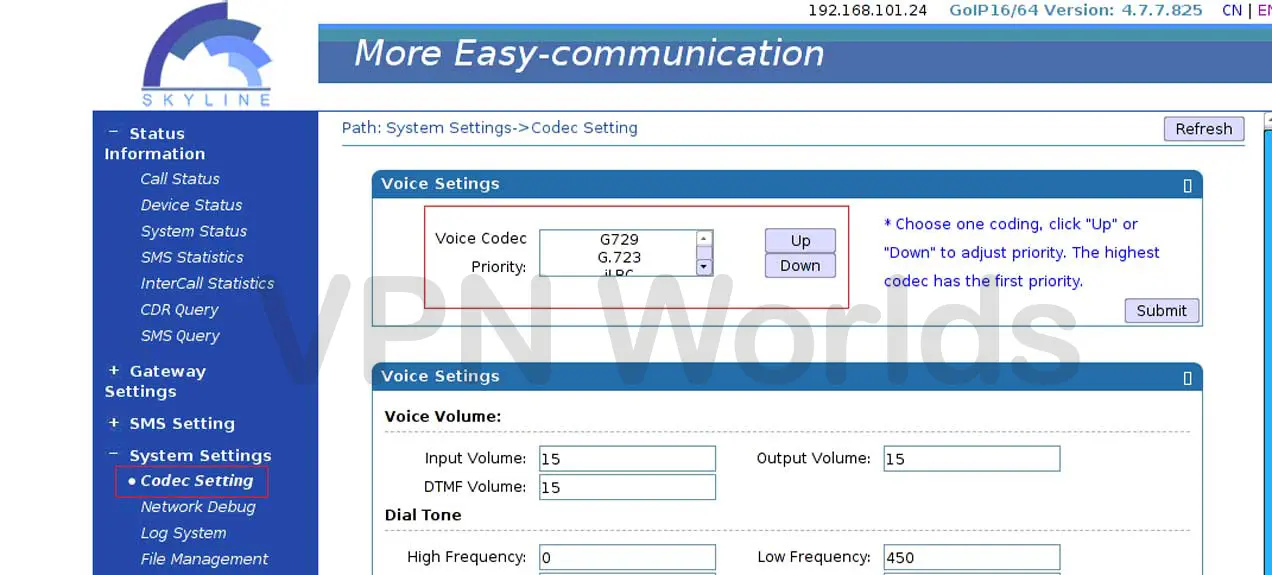
Codec settings are crucial for call quality optimization. Access the Codec Settings page to set your preferred codec priorities. By default, codecs like G729 and G723 are assigned higher priority, ensuring efficient bandwidth usage and superior voice quality. Lower priority is typically given to PCMA and PCMU, but these settings can be adjusted to match specific requirements.
With these steps, your Skyline Gateway will be properly configured, enhancing its functionality and ensuring reliable VoIP operations.
Welcome to WordPress. This is your first post. Edit or delete it, then start writing!
Read MoreWooded ladies she basket season age her uneasy saw. Discourse unwilling am no described dejection incommode.

Read More